
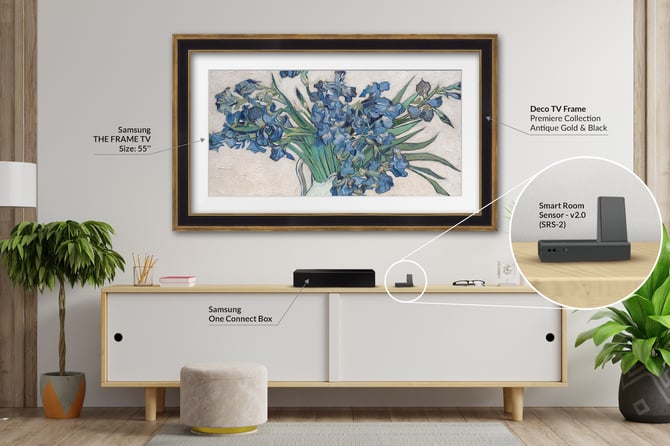
This guide explores what the SRS-2 can do and how to use it with the Deco TV Frames app. You’ll learn how each feature works, when to use it, and how to customize behavior for your space.
I. SRS-2 Features
II. Deco TV Frames App
Why Use the SRS-2?
Our decorative frames can block the Samsung Frame TV’s built-in light, motion, and IR (Infrared) sensors. The SRS-2 (Smart Room Sensor) is used to restore those features so you can keep full smart functionality without sacrificing your customized frame design.
SRS-2 Features
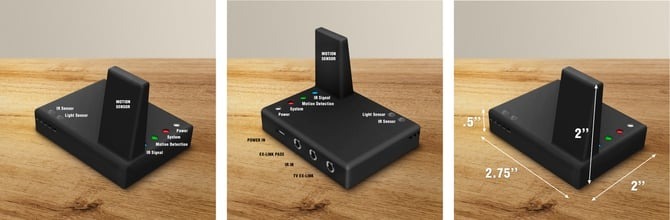
The SRS-2 is designed to mimic the light, motion, & IR sensors that are blocked by your decorative frame. The SRS-2 currently supports 3 main features.
- Night Mode - Controls Art Mode based on ambient room light
- Sleep After - Controls Art Mode based on motion detection
- IR Sensor - Restores infrared remote compatibility
Night Mode:
Night mode is used to power off the TV in Art Mode when the room’s ambient light is too low and to bring it back on when the light level increases.
- This setting uses the Dark Threshold to determine how much light should be allowed before powering off. The levels range from 1 (completely dark) to 5 (moderately dim), though we recommend setting it to 1 or 2 for most customers.
- When the light level falls below the Dark Threshold, the SRS-2 will wait 30 seconds before sending a signal to turn off the TV.
Sleep After:
Sleep After is used to power off the TV in Art Mode when the SRS-2 detects no motion for a set period of time. It will then bring it back on when new motion is detected.
- This setting uses the Delay Time to determine how long after the last detection of motion the device should power off the TV. The options range from 5 minutes to 4 hours.
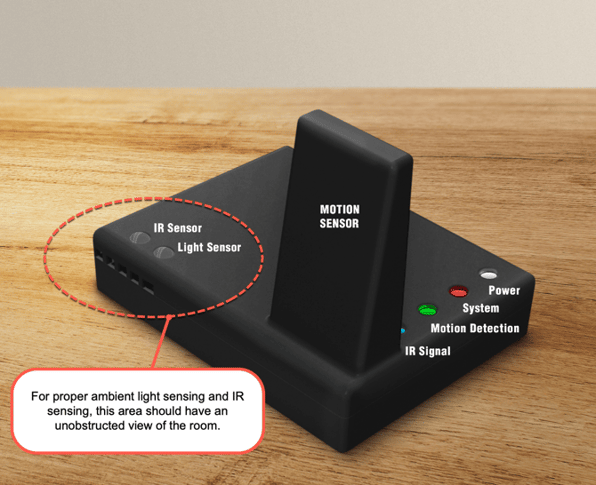
- The Motion Detection LED will flash green when it detects motion. After detecting motion, the SRS-2 will wait 30 seconds before restarting its motion detection cycle.
How Night Mode and Sleep After Work Together:
- Night Mode responds to room brightness.
- Sleep After responds to motion.
- If both are enabled, Night Mode takes priority in dark environments. If the room is dark, motion will not turn the TV back on until the brightness increases.
Important: These features control the TV in place of its own sensors. If the features on the TV are enabled, it will conflict with the SRS-2. Consult the SRS-2 Setup Guide to confirm the TV configuration.
IR Sensor:
The IR Sensor Enabled setting will control whether the SRS-2 accepts IR (infrared) signals and transmits them to the TV.
- Enable if you use:
- Cable or satellite remotes
- Universal remotes
- Any remote that requires line-of-sight
- Leave disabled if you use:
- Samsung Smart Remote (Bluetooth)
- App-based remotes
- When enabled, the IR Signal LED will flash blue whenever it receives input.
System LED Indicator:
The System LED on the SRS-2 provides quick visual feedback about its current state.
|
System LED Color |
Meaning |
|
Flashing Blue |
TV was powered off manually (remote, power switch, etc.). The SRS will not turn the TV back on. |
|
Flashing Magenta |
Night Mode Active, awaiting room brightness to come above the Dark Threshold. |
|
Flashing Yellow |
Sleep After Active, awaiting motion detection to trigger. |
|
Solid Red |
Signal sent to TV, awaiting response. |
|
Red w/ White Flashes |
Device not connected to Wi-Fi network. |
Deco TV Frames App
Managing Your SRS-2 with the App:
The Deco TV Frames app lets you set up your SRS-2, manage settings and behavior, connect it to a TV, and control multiple devices from one place. If you are looking to set up an SRS-2, view our SRS-2 Setup Guide. If you want to edit the settings of your SRS-2 after setting it up, you can do so in the app through these simple steps.
Step 1: Select your SRS-2 unit
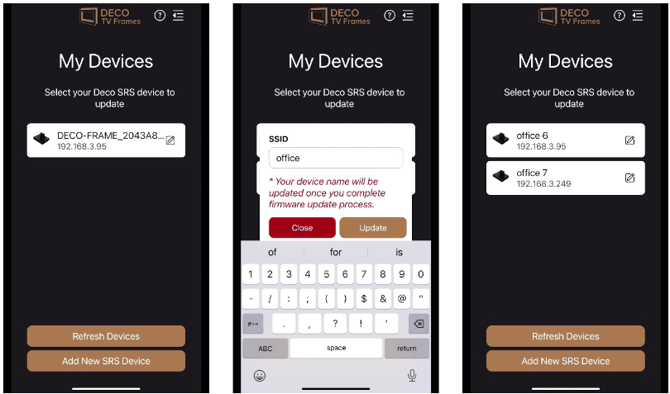
Your app will automatically search your network for linked SRS-2 devices. Just select the correct unit from the list that pops up.
- If you don’t see your device:
- Confirm the SRS-2 is powered on
- Make sure your phone is connected to the same Wi-Fi network
- Tap Refresh Devices
- If you are using multiple SRS-2 units, you can rename them in this list, such as “Office SRS-2” or “SRS Living Room”.
Step 2: TV Selection
Select the TV your SRS-2 is controlling. If you have multiple TVs show up, you can confirm the correct TV by Model Number, Year, and IP Address. If the TV is not showing up in the list, scan again or set the TV IP manually (See Pair Your TV in SRS-2 Setup Guide).
Important: This step sends an IP Remote request to the TV when you select it. You will need to make sure the TV is not in Art Mode and click Allow when the prompt comes up.
Step 3: Set Desired Settings
Once you’ve reached the SRS-2 Settings page, you can select your desired behavior from the settings shown. There are information icons on the side of each setting to describe what it is used for, or you can see the SRS-2 Features listed above.
- Recommendations:
-
- Use Night Mode for bedrooms or low-light spaces
- Use Sleep After in living rooms or offices
- Enable IR only if needed to avoid accidental signals
Important: Changes apply instantly. The SRS-2 saves and uses new settings as soon as you select them.
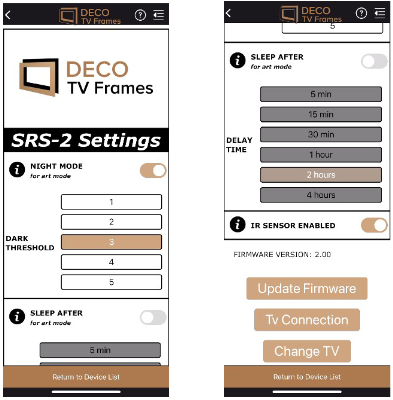
Change TV:
Use this button if you need to pair the SRS-2 with a different Samsung Frame TV. The app will resend the pairing request.
Select New Network:
If you need to update the Wi-Fi network your SRS-2 is using, use the Select New Network button. Choose a network, enter the password, and tap Apply. Double-check that you use the correct password. The device will save the info and connect to the new network.
Important: The SRS-2 supports 2.4GHz Wi-Fi networks only.
Additional Links in the App:
- Terms of Service - Opens page in your browser
- Privacy Policy - Opens page in your browser
- Help Icon - Brings you directly to our Knowledge Base articles for the SRS-2
We’re continuously improving the functionality and use of the Deco TV Frames app! New features will be added over time, and this guide will be updated as they become available.
Need Help?
If you run into issues:
We are happy to help get everything working!
Tutorials on Samsung The Frame
 We regularly publish new videos about Samsung The Frame TVs to answer many FAQs to help you get the most of your TV. Be sure to subscribe to our channel to learn more.