
(Now compatible with Frame Pro models)
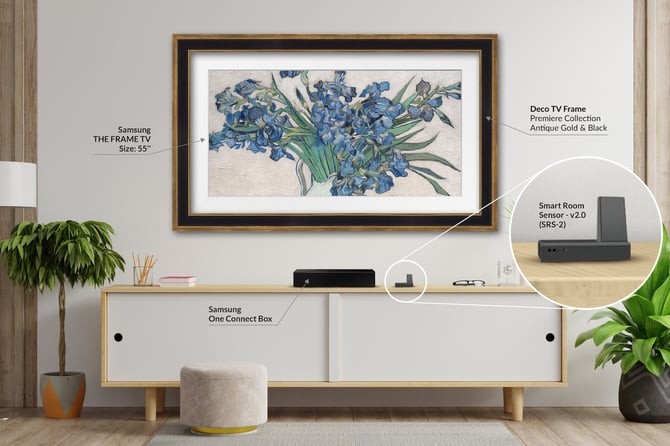
This guide walks you through setting up your SRS-2 and connecting it to your Samsung Frame TV using the Deco TV Frames app. The process takes about 15–20 minutes.
I. Hardware Setup
II. Prepare Your TV
III. Install the App
IV. Connect Your SRS-2
V. Pair Your TV
Hardware Setup
Before You Start, make sure:
- Your Samsung Frame TV is powered on and connected to Wi-Fi.
- Your phone is connected to the same network as your TV.
- Your SRS-2 is nearby and ready to plug in.
Step 1: Plug in SRS-2
- Plug the SRS-2 into a stable power source using the included power cable.
- Place it where it has a clear view of the room for motion and light sensing.
- If using an IR remote, position the SRS-2 where it can easily receive signals.
Prepare Your TV
Step 2: Configure TV Settings
The SRS-2 replaces the TV’s built-in sensors, which are blocked by the Frame. You will need to disable the TV sensors and allow the TV to accept wireless control from the device.
-
A. Update Art Mode Settings
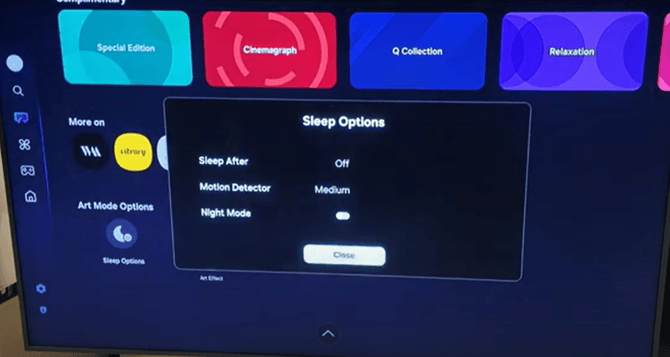
- Home Page → Art Page → Scroll to the Bottom for Art Mode Options → Select Sleep Options.
- Ensure that Sleep After is set to Off and Night Mode is disabled. Motion Detector can be left alone, as it is only used with Sleep After.
- After closing the Sleep Options, double-check that the Art Effect setting is On.
-
B. Enable IP Remote
- Home Page → Settings → All Settings → Connection → Network → Expert Settings.
- Set the IP Remote setting to Enabled.
| 2017-2020 | 2021 | 2022-2023 |
|
|
|
Install the App
Step 3: Download the Deco TV Frames App
As of the 2.0 update, the SRS-2 is controlled wirelessly through the Deco TV Frames app. You can find links to the app in the App Store & Play Store below.
 https://apps.apple.com/us/app/deco-tv-frames/id6747960167
 https://play.google.com/store/apps/details?id=com.framemytv&pcampaignid=web_share
Step 4: Allow App Permissions
When opening the app for the first time, allow all requested permissions.
Important: Precise Location and Local Network permissions are required for the app to detect your SRS-2 and TV. If you accidentally decline them, re-enable access in your phone’s app settings.
Step 5: Enter your Email
The app will ask for your email to register your SRS with your account.


Connect Your SRS-2
Step 6: Add New SRS Device
When setting up a new SRS-2, you will need to add the device to your home network.
- A. Connect to the DECO-FRAME_XXXXXXXX Wi-Fi broadcast from the SRS-2.
Important: If a captive Wi-Fi frame pops up when connecting to the Wi-Fi, tap Cancel and select Use Without Internet.


- B. Enter your Home Wi-Fi SSID & Password. They need to be an exact match to your home network, including any case sensitivity, punctuation, and spaces.
Important: The SRS-2 only supports 2.4GHz connections. If you are using a split-band network (2.4GHz, 5GHz, 6GHz), make sure your phone and SRS-2 are connecting to the 2.4GHz network.
Pair Your TV
Step 7: Select Samsung Frame TV
Important: Your TV must NOT be in Art Mode during pairing. Leave it on a menu or TV channel to allow the IP Remote prompt to appear.
- Select TV Control for your SRS
- Click Change TV
- The app will automatically search for Samsung Frame TVs on the same network and list the devices it finds. Select your TV from the list. If you have multiple Samsung Frame TVs, you can confirm the correct TV by IP Address, Model Number, & Year.
- If the TV you are looking for is not displayed, you can try to scan again, or you can set the TV IP Address manually.
- To find your TV’s IP Address: Home Page → Settings → All Settings → Connection → Network → Network Status → IP Settings.


Step 8: Set Desired Settings
Once connected, you can configure:
- Night Mode - Controls Art Mode based on ambient room light
- Sleep After - Controls Art Mode based on motion detection
- IR Sensor - Restores infrared remote compatibility
For a more detailed breakdown of how these settings work, see our SRS-2 Feature Spotlight.
Need Help?
If you run into issues:
We are happy to help get everything working!
Tutorials on Samsung The Frame
 We regularly publish new videos about Samsung The Frame TVs to answer many FAQs to help you get the most of your TV. Be sure to subscribe to our channel to learn more.